Akira is a web-based network management system for organizing physical and virtual infrastructure, IP addressing, circuits, VLANs, VPNs, DNS and DHCP servers, and the relationships between them. Akira combines a broad relationship-aware infrastructure data model with fast browser workflows, REST API automation, real-time change notifications, and secure live control and monitoring of network services.
Akira is an enterprise-grade network management system. It is used to manage various services in a company's network which we also develop. Akira is free for commercial and personal use. It is packaged for Red Hat Enterprise Linux, Fedora, Ubuntu, and Debian.
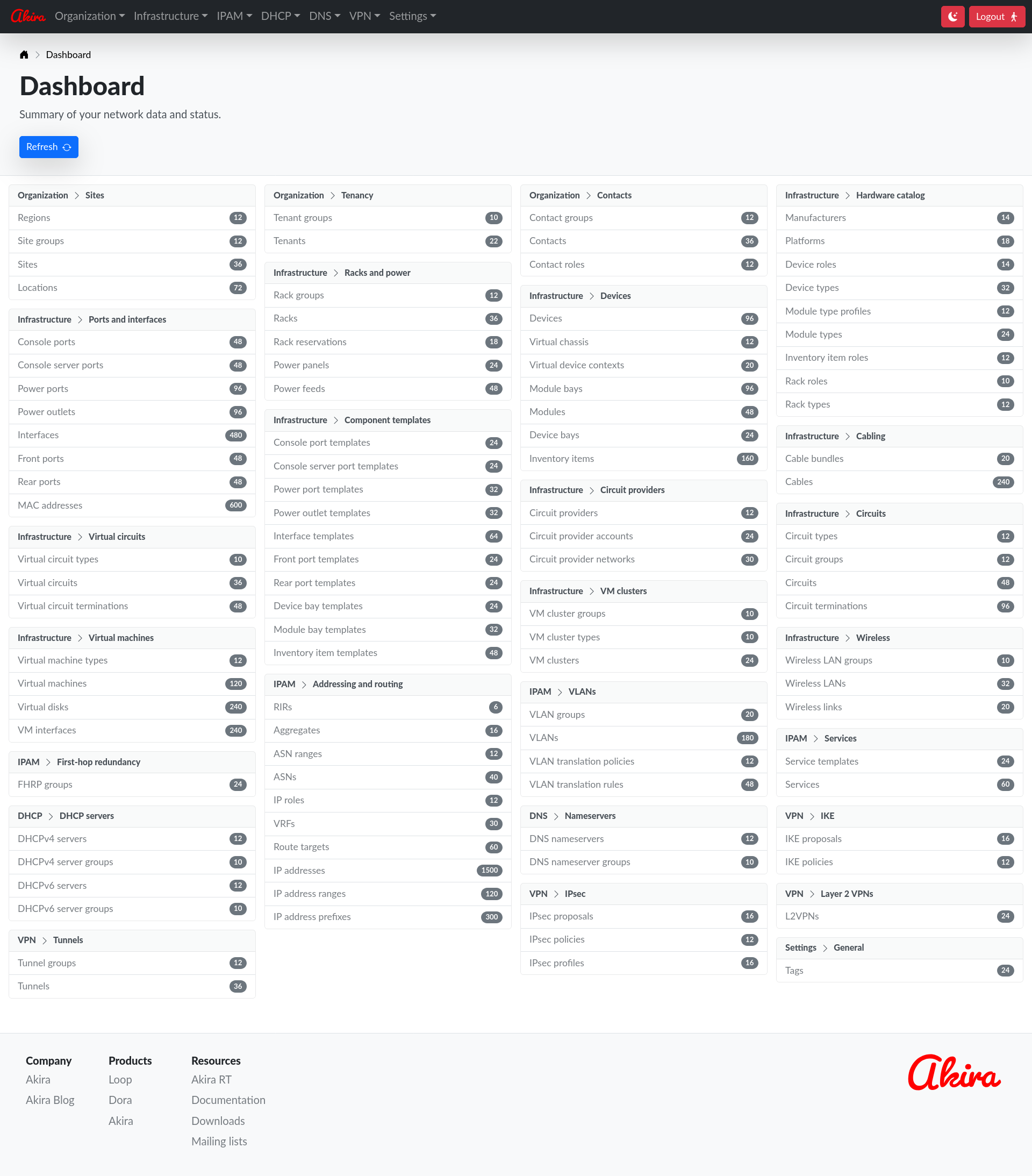
as a network source of truth
Organization and tenancy
Organize infrastructure around geographic, organizational, and ownership boundaries instead of maintaining disconnected spreadsheets.
- Regions, site groups, sites, and nested locations
- Tenants and tenant groups
- Contacts, contact groups, and operational roles
Physical infrastructure
Describe data-center hardware from reusable component templates down to installed devices, ports, cabling, power, and inventory.
- Manufacturers, device/module types, roles, and templates
- Racks, reservations, panels, feeds, devices, and modules
- Interfaces, console/power/front/rear ports, MACs, and cables
IPAM, VLANs, and routing
Track addressing and layer-3 resources together with the network constructs that consume them.
- RIRs, aggregates, IPv4/IPv6 prefixes, ranges, and addresses
- ASN ranges, ASNs, VRFs, route targets, and IP roles
- VLAN groups/VLANs, translation policy, services, and FHRP groups
Circuits, virtual networks, and services
Keep carriers, VMs, wireless networks, VPN, DNS, and DHCP infrastructure in the same relationship-aware model.
- Providers, circuits, terminations, and virtual circuits
- Clusters, virtual machines/disks/interfaces, and wireless LANs/links
- IKE/IPsec/L2VPN/tunnels
- DNS nameserver and DHCP server objects
and manage large collections efficiently
Relationship-aware objects
Move through infrastructure as a graph of references instead of manually correlating identifiers between unrelated collections.
- 100+ infrastructure object types
- One-to-many and many-to-many relationships
- Linked references and categorized related objects
- Timestamps, statuses, tags, and Markdown comments
Large-inventory object lists
Browse large collections without loading the entire database into the browser, while keeping navigation state shareable and predictable.
- Server-side pagination and sorting
- Configurable rows, persistent URL state, and responsive tables
- Cross-page selection and bulk deletion with partial-success feedback
Schema-driven editing
Use one consistent editor across the object model, with field-specific validation and safer handling of references and sensitive values.
- Create, edit, clone, delete, refresh, and bulk-delete workflows
- Typed DNS, IP address/prefix, email, URL, UUID, status, color, boolean, and reference fields
- Masked auto-generated Base64 secrets, defaults, constraints, and validation
REST API and real-time events
Automate the same object model used by the web interface and let open browser views update automatically when data changes in the background.
- Versioned JSON REST API with bearer-token authentication
- Browser WebSocket subscriptions for background object and dashboard updates
- Reconnect recovery, notification coalescing, and version-change alerts
groups of remote DNS nameservers
Managed DNS configuration
Make Akira the source of operational configuration for DNS nameservers while sharing common configuration through nameserver groups.
- DNS nameserver configuration management
- Nameserver-group defaults with per-nameserver overrides
- Apply configuration to connected nameservers automatically
Authenticated manager connections
Authenticate each managed nameserver independently and protect remote control traffic with cryptographic message authentication and TLS.
- JWT authentication of nameserver connections
- Per-nameserver HMAC-signed command messages
- Secure WebSockets, TLS CA verification, realm and version checks
Live status and control
See whether each nameserver is connected, inspect its operational state, and safely serialize remote operations.
- Live connected-state reporting
- Nameserver status and global nameserver statistics
- Startup configuration download by Loop DNS nameservers with fallback
- Forced reconfiguration using UI
DNS nameserver statistics graphs
Record time-series RRD statistics databases in Loop DNS nameservers and display selectable historical views of statistics graphs.
- Historical query, resolver, cache, zone, and network statistics
- Selective-interval graph-data transmission for efficient remote operation
- View hourly/daily/weekly/monthly/yearly statistics graphs of min/average/max values
with a well-designed operator experience
Virtual host multiple realms
Separate administrative environments into realms while keeping data and authentication scoped to individual realms.
- Independent realm databases and realm-aware login
- Configurable users with hashed passphrases
- JWT secrets/expiry and realm-scoped browser/manager sessions
Durable local persistence
Keep the management database self-contained while using database features and indexed representations chosen for reliable interactive operation.
- Per-realm SQLite databases
- Write-ahead logging with full synchronization
- Indexed custom-type sorting (e.g., DNS-name) and batched deletion transactions
Hardened service deployment
Run Akira as a normal long-lived system service while reducing privilege and controlling exactly where it listens and stores data.
- IPv4/IPv6 service listener and working-directory configuration
- Unprivileged-user and
chroot(2)jail operation support - Linux capability minimization and PID-file controls
Modern operator interface
Use the same data model comfortably from laptops through large displays, with immediate feedback when objects or managed nameservers change.
- Responsive dashboard/navigation and dark mode
- Immediate UI refresh on background object and collection updates
- Progress indicators, alerts, status colors, and descriptive controls
- Low-flicker refreshes and automatic recovery after WebSocket reconnects
Akira develops various computer network protocol implementations that can be used independently, or managed by the Akira network management system.
Akira is packaged for Red Hat Enterprise Linux & clones, Fedora, Ubuntu, and Debian.
To install Akira version 1.99.25 on Red Hat Enterprise Linux
10 (x86_64), follow these steps as the root
user.
First, install the akira-release RPM package that will
add the akira-epel
and akira-epel-testing DNF repositories to your system,
as well as associated GPG keys used to verify signed RPM packages from
these repositories:
# dnf install https://download.akira.org/packages/akira/1.99/epel/10/x86_64/akira-release-1.99.25.20261031034710.75abdefe8a-1.el10.noarch.rpmThen, install the akira RPM package that will install the
Akira software and documentation:
# dnf install akiraThen, configure Akira suitably by editing
/etc/akira/akira.conf, and start the service:
# systemctl enable --now akiraTo install Akira version 1.99.25 on Red Hat Enterprise Linux
10 (aarch64), follow these steps as the root
user.
First, install the akira-release RPM package that will
add the akira-epel
and akira-epel-testing DNF repositories to your system,
as well as associated GPG keys used to verify signed RPM packages from
these repositories:
# dnf install https://download.akira.org/packages/akira/1.99/epel/10/aarch64/akira-release-1.99.25.20261031034710.75abdefe8a-1.el10.noarch.rpmThen, install the akira RPM package that will install the
Akira software and documentation:
# dnf install akiraThen, configure Akira suitably by editing
/etc/akira/akira.conf, and start the service:
# systemctl enable --now akiraTo install Akira version 1.99.25 on Red Hat Enterprise Linux
9 (x86_64), follow these steps as the root
user.
First, install the akira-release RPM package that will
add the akira-epel
and akira-epel-testing DNF repositories to your system,
as well as associated GPG keys used to verify signed RPM packages from
these repositories:
# dnf install https://download.akira.org/packages/akira/1.99/epel/9/x86_64/akira-release-1.99.25.20261031034710.75abdefe8a-1.el9.noarch.rpmThen, install the akira RPM package that will install the
Akira software and documentation:
# dnf install akiraThen, configure Akira suitably by editing
/etc/akira/akira.conf, and start the service:
# systemctl enable --now akiraTo install Akira version 1.99.25 on Red Hat Enterprise Linux
9 (aarch64), follow these steps as the root
user.
First, install the akira-release RPM package that will
add the akira-epel
and akira-epel-testing DNF repositories to your system,
as well as associated GPG keys used to verify signed RPM packages from
these repositories:
# dnf install https://download.akira.org/packages/akira/1.99/epel/9/aarch64/akira-release-1.99.25.20261031034710.75abdefe8a-1.el9.noarch.rpmThen, install the akira RPM package that will install the
Akira software and documentation:
# dnf install akiraThen, configure Akira suitably by editing
/etc/akira/akira.conf, and start the service:
# systemctl enable --now akiraTo install Akira version 1.99.25 on Fedora Linux
44 (x86_64), follow these steps as the root
user.
First, install the akira-release RPM package that will
add the akira-fedora
and akira-fedora-testing DNF repositories to your system,
as well as associated GPG keys used to verify signed RPM packages from
these repositories:
# dnf install https://download.akira.org/packages/akira/1.99/fedora/44/x86_64/akira-release-1.99.25.20261031034710.75abdefe8a-1.fc44.noarch.rpmThen, install the akira RPM package that will install the
Akira software and documentation:
# dnf install akiraThen, configure Akira suitably by editing
/etc/akira/akira.conf, and start the service:
# systemctl enable --now akiraTo install Akira version 1.99.25 on Fedora Linux
44 (aarch64), follow these steps as the root
user.
First, install the akira-release RPM package that will
add the akira-fedora
and akira-fedora-testing DNF repositories to your system,
as well as associated GPG keys used to verify signed RPM packages from
these repositories:
# dnf install https://download.akira.org/packages/akira/1.99/fedora/44/aarch64/akira-release-1.99.25.20261031034710.75abdefe8a-1.fc44.noarch.rpmThen, install the akira RPM package that will install the
Akira software and documentation:
# dnf install akiraThen, configure Akira suitably by editing
/etc/akira/akira.conf, and start the service:
# systemctl enable --now akiraTo install Akira version 1.99.25 on Fedora Linux
43 (x86_64), follow these steps as the root
user.
First, install the akira-release RPM package that will
add the akira-fedora
and akira-fedora-testing DNF repositories to your system,
as well as associated GPG keys used to verify signed RPM packages from
these repositories:
# dnf install https://download.akira.org/packages/akira/1.99/fedora/43/x86_64/akira-release-1.99.25.20261031034710.75abdefe8a-1.fc43.noarch.rpmThen, install the akira RPM package that will install the
Akira software and documentation:
# dnf install akiraThen, configure Akira suitably by editing
/etc/akira/akira.conf, and start the service:
# systemctl enable --now akiraTo install Akira version 1.99.25 on Fedora Linux
43 (aarch64), follow these steps as the root
user.
First, install the akira-release RPM package that will
add the akira-fedora
and akira-fedora-testing DNF repositories to your system,
as well as associated GPG keys used to verify signed RPM packages from
these repositories:
# dnf install https://download.akira.org/packages/akira/1.99/fedora/43/aarch64/akira-release-1.99.25.20261031034710.75abdefe8a-1.fc43.noarch.rpmThen, install the akira RPM package that will install the
Akira software and documentation:
# dnf install akiraThen, configure Akira suitably by editing
/etc/akira/akira.conf, and start the service:
# systemctl enable --now akiraTo install Akira version 1.99.25 on Debian 13 “Trixie”
(amd64), follow these steps as the root
user.
First, copy the OpenPGP key that apt uses to
verify the release's deb package checksums
into /usr/share/keyrings/:
# curl -o /usr/share/keyrings/akira-archive-keyring.gpg https://download.akira.org/packages/akira/1.99/debian/trixie/amd64/akira-archive-keyring-2026-06-09.gpgThen, add the Akira apt network package
repository for your platform:
# echo "deb [signed-by=/usr/share/keyrings/akira-archive-keyring.gpg] https://download.akira.org/packages/akira/1.99/debian/trixie/amd64/ /" > /etc/apt/sources.list.d/akira-trixie-amd64.listThen, install the akira deb package that will
install the Akira software and documentation:
# apt install akiraThen, configure Akira suitably by editing
/etc/akira/akira.conf, and start the service:
# systemctl enable --now akiraTo install Akira version 1.99.25 on Debian 13 “Trixie”
(arm64), follow these steps as the root
user.
First, copy the OpenPGP key that apt uses to
verify the release's deb package checksums
into /usr/share/keyrings/:
# curl -o /usr/share/keyrings/akira-archive-keyring.gpg https://download.akira.org/packages/akira/1.99/debian/trixie/arm64/akira-archive-keyring-2026-06-09.gpgThen, add the Akira apt network package
repository for your platform:
# echo "deb [signed-by=/usr/share/keyrings/akira-archive-keyring.gpg] https://download.akira.org/packages/akira/1.99/debian/trixie/arm64/ /" > /etc/apt/sources.list.d/akira-trixie-arm64.listThen, install the akira deb package that will
install the Akira software and documentation:
# apt install akiraThen, configure Akira suitably by editing
/etc/akira/akira.conf, and start the service:
# systemctl enable --now akiraTo install Akira version 1.99.25 on Debian 13 “Trixie”
(riscv64), follow these steps as the root
user.
First, copy the OpenPGP key that apt uses to
verify the release's deb package checksums
into /usr/share/keyrings/:
# curl -o /usr/share/keyrings/akira-archive-keyring.gpg https://download.akira.org/packages/akira/1.99/debian/trixie/riscv64/akira-archive-keyring-2026-06-09.gpgThen, add the Akira apt network package
repository for your platform:
# echo "deb [signed-by=/usr/share/keyrings/akira-archive-keyring.gpg] https://download.akira.org/packages/akira/1.99/debian/trixie/riscv64/ /" > /etc/apt/sources.list.d/akira-trixie-riscv64.listThen, install the akira deb package that will
install the Akira software and documentation:
# apt install akiraThen, configure Akira suitably by editing
/etc/akira/akira.conf, and start the service:
# systemctl enable --now akiraTo install Akira version 1.99.25 on Debian 12 “Bookworm”
(amd64), follow these steps as the root
user.
First, copy the OpenPGP key that apt uses to
verify the release's deb package checksums
into /usr/share/keyrings/:
# curl -o /usr/share/keyrings/akira-archive-keyring.gpg https://download.akira.org/packages/akira/1.99/debian/bookworm/amd64/akira-archive-keyring-2026-06-09.gpgThen, add the Akira apt network package
repository for your platform:
# echo "deb [signed-by=/usr/share/keyrings/akira-archive-keyring.gpg] https://download.akira.org/packages/akira/1.99/debian/bookworm/amd64/ /" > /etc/apt/sources.list.d/akira-bookworm-amd64.listThen, install the akira deb package that will
install the Akira software and documentation:
# apt install akiraThen, configure Akira suitably by editing
/etc/akira/akira.conf, and start the service:
# systemctl enable --now akiraTo install Akira version 1.99.25 on Debian 12 “Bookworm”
(arm64), follow these steps as the root
user.
First, copy the OpenPGP key that apt uses to
verify the release's deb package checksums
into /usr/share/keyrings/:
# curl -o /usr/share/keyrings/akira-archive-keyring.gpg https://download.akira.org/packages/akira/1.99/debian/bookworm/arm64/akira-archive-keyring-2026-06-09.gpgThen, add the Akira apt network package
repository for your platform:
# echo "deb [signed-by=/usr/share/keyrings/akira-archive-keyring.gpg] https://download.akira.org/packages/akira/1.99/debian/bookworm/arm64/ /" > /etc/apt/sources.list.d/akira-bookworm-arm64.listThen, install the akira deb package that will
install the Akira software and documentation:
# apt install akiraThen, configure Akira suitably by editing
/etc/akira/akira.conf, and start the service:
# systemctl enable --now akiraTo install Akira version 1.99.25 on Ubuntu 26.04 LTS “Resolute Raccoon”
(amd64), follow these steps as the root
user.
First, copy the OpenPGP key that apt uses to
verify the release's deb package checksums
into /usr/share/keyrings/:
# curl -o /usr/share/keyrings/akira-archive-keyring.gpg https://download.akira.org/packages/akira/1.99/ubuntu/resolute/amd64/akira-archive-keyring-2026-06-09.gpgThen, add the Akira apt network package
repository for your platform:
# echo "deb [signed-by=/usr/share/keyrings/akira-archive-keyring.gpg] https://download.akira.org/packages/akira/1.99/ubuntu/resolute/amd64/ /" > /etc/apt/sources.list.d/akira-resolute-amd64.listThen, install the akira deb package that will
install the Akira software and documentation:
# apt install akiraThen, configure Akira suitably by editing
/etc/akira/akira.conf, and start the service:
# systemctl enable --now akiraTo install Akira version 1.99.25 on Ubuntu 26.04 LTS “Resolute Raccoon”
(arm64), follow these steps as the root
user.
First, copy the OpenPGP key that apt uses to
verify the release's deb package checksums
into /usr/share/keyrings/:
# curl -o /usr/share/keyrings/akira-archive-keyring.gpg https://download.akira.org/packages/akira/1.99/ubuntu/resolute/arm64/akira-archive-keyring-2026-06-09.gpgThen, add the Akira apt network package
repository for your platform:
# echo "deb [signed-by=/usr/share/keyrings/akira-archive-keyring.gpg] https://download.akira.org/packages/akira/1.99/ubuntu/resolute/arm64/ /" > /etc/apt/sources.list.d/akira-resolute-arm64.listThen, install the akira deb package that will
install the Akira software and documentation:
# apt install akiraThen, configure Akira suitably by editing
/etc/akira/akira.conf, and start the service:
# systemctl enable --now akiraTo install Akira version 1.99.25 on Ubuntu 26.04 LTS “Resolute Raccoon”
(riscv64), follow these steps as the root
user.
First, copy the OpenPGP key that apt uses to
verify the release's deb package checksums
into /usr/share/keyrings/:
# curl -o /usr/share/keyrings/akira-archive-keyring.gpg https://download.akira.org/packages/akira/1.99/ubuntu/resolute/riscv64/akira-archive-keyring-2026-06-09.gpgThen, add the Akira apt network package
repository for your platform:
# echo "deb [signed-by=/usr/share/keyrings/akira-archive-keyring.gpg] https://download.akira.org/packages/akira/1.99/ubuntu/resolute/riscv64/ /" > /etc/apt/sources.list.d/akira-resolute-riscv64.listThen, install the akira deb package that will
install the Akira software and documentation:
# apt install akiraThen, configure Akira suitably by editing
/etc/akira/akira.conf, and start the service:
# systemctl enable --now akiraTo install Akira version 1.99.25 on Ubuntu 24.04 LTS “Noble Numbat”
(amd64), follow these steps as the root
user.
First, copy the OpenPGP key that apt uses to
verify the release's deb package checksums
into /usr/share/keyrings/:
# curl -o /usr/share/keyrings/akira-archive-keyring.gpg https://download.akira.org/packages/akira/1.99/ubuntu/noble/amd64/akira-archive-keyring-2026-06-09.gpgThen, add the Akira apt network package
repository for your platform:
# echo "deb [signed-by=/usr/share/keyrings/akira-archive-keyring.gpg] https://download.akira.org/packages/akira/1.99/ubuntu/noble/amd64/ /" > /etc/apt/sources.list.d/akira-noble-amd64.listThen, install the akira deb package that will
install the Akira software and documentation:
# apt install akiraThen, configure Akira suitably by editing
/etc/akira/akira.conf, and start the service:
# systemctl enable --now akiraTo install Akira version 1.99.25 on Ubuntu 24.04 LTS “Noble Numbat”
(arm64), follow these steps as the root
user.
First, copy the OpenPGP key that apt uses to
verify the release's deb package checksums
into /usr/share/keyrings/:
# curl -o /usr/share/keyrings/akira-archive-keyring.gpg https://download.akira.org/packages/akira/1.99/ubuntu/noble/arm64/akira-archive-keyring-2026-06-09.gpgThen, add the Akira apt network package
repository for your platform:
# echo "deb [signed-by=/usr/share/keyrings/akira-archive-keyring.gpg] https://download.akira.org/packages/akira/1.99/ubuntu/noble/arm64/ /" > /etc/apt/sources.list.d/akira-noble-arm64.listThen, install the akira deb package that will
install the Akira software and documentation:
# apt install akiraThen, configure Akira suitably by editing
/etc/akira/akira.conf, and start the service:
# systemctl enable --now akiraTo install Akira version 1.99.25 on Ubuntu 24.04 LTS “Noble Numbat”
(riscv64), follow these steps as the root
user.
First, copy the OpenPGP key that apt uses to
verify the release's deb package checksums
into /usr/share/keyrings/:
# curl -o /usr/share/keyrings/akira-archive-keyring.gpg https://download.akira.org/packages/akira/1.99/ubuntu/noble/riscv64/akira-archive-keyring-2026-06-09.gpgThen, add the Akira apt network package
repository for your platform:
# echo "deb [signed-by=/usr/share/keyrings/akira-archive-keyring.gpg] https://download.akira.org/packages/akira/1.99/ubuntu/noble/riscv64/ /" > /etc/apt/sources.list.d/akira-noble-riscv64.listThen, install the akira deb package that will
install the Akira software and documentation:
# apt install akiraThen, configure Akira suitably by editing
/etc/akira/akira.conf, and start the service:
# systemctl enable --now akiraTo install Akira version 1.99.25 on Ubuntu 22.04 LTS “Jammy Jellyfish”
(amd64), follow these steps as the root
user.
First, copy the OpenPGP key that apt uses to
verify the release's deb package checksums
into /usr/share/keyrings/:
# curl -o /usr/share/keyrings/akira-archive-keyring.gpg https://download.akira.org/packages/akira/1.99/ubuntu/jammy/amd64/akira-archive-keyring-2026-06-09.gpgThen, add the Akira apt network package
repository for your platform:
# echo "deb [signed-by=/usr/share/keyrings/akira-archive-keyring.gpg] https://download.akira.org/packages/akira/1.99/ubuntu/jammy/amd64/ /" > /etc/apt/sources.list.d/akira-jammy-amd64.listThen, install the akira deb package that will
install the Akira software and documentation:
# apt install akiraThen, configure Akira suitably by editing
/etc/akira/akira.conf, and start the service:
# systemctl enable --now akiraTo install Akira version 1.99.25 on Ubuntu 22.04 LTS “Jammy Jellyfish”
(arm64), follow these steps as the root
user.
First, copy the OpenPGP key that apt uses to
verify the release's deb package checksums
into /usr/share/keyrings/:
# curl -o /usr/share/keyrings/akira-archive-keyring.gpg https://download.akira.org/packages/akira/1.99/ubuntu/jammy/arm64/akira-archive-keyring-2026-06-09.gpgThen, add the Akira apt network package
repository for your platform:
# echo "deb [signed-by=/usr/share/keyrings/akira-archive-keyring.gpg] https://download.akira.org/packages/akira/1.99/ubuntu/jammy/arm64/ /" > /etc/apt/sources.list.d/akira-jammy-arm64.listThen, install the akira deb package that will
install the Akira software and documentation:
# apt install akiraThen, configure Akira suitably by editing
/etc/akira/akira.conf, and start the service:
# systemctl enable --now akiraNote
Akira is free for commercial and personal use. Please see its license under Akira documentation for more details.
Note
Users of Red Hat Enterprise Linux clones such as Rocky Linux, AlmaLinux, and Oracle Linux can use the Red Hat Enterprise Linux packages of the corresponding version and follow the corresponding installation instructions.
Warning
Amazon Linux and Azure Linux packages are currently alpha releases, i.e., they are published only for testing purposes. They have known outstanding issues due to idiosyncracies of these platforms, which may cause various functions to not work correctly or at all. We will remove this warning when these issues have been resolved.
Note
Raspberry Pi OS users can use the Debian arm64 packages of the corresponding Debian version (e.g., Trixie) and follow the corresponding installation instructions.
Akira is documented in the Akira User Manual, with manpages for the server, password utility, and configuration file. The user manual and manpages are also included in the software packages.
| Branch | Type | User Manual | User Manual | Download HTML | README | License |
|---|---|---|---|---|---|---|
| 1.99 | Development | View PDF | View HTML | Download HTML ZIP | View README | View LICENSE.txt |
To report a bug in the Akira product, please email <akira-bugs@akira.org> with detailed information about the issue. Please include sufficient information to allow reproduction of the problem by us.
Paid commercial support is available covering the entire Akira platform of products.
Whatever Akira products you use, you are covered all under one commercial support plan.
Akira platform support plansThree different support options are available. Paid commercial support plans include support for all of Akira, Loop, and Dora together on a per-host basis. |
None
Free
|
Business
US $1,000/month/host
|
Larger operator
US $1,000/month/host
|
| Contract period | Not applicable | None | None |
| Minimum number of hosts | Not applicable | 1 | 64 |
| Support hours | Not applicable | Business hours (9 AM—5 PM) | 24×7 throughout the year |
| Response time | Not applicable | Within 1–2 business days | Immediate ASAP |
| Community discussions on public mailing lists | |||
| Commercial support from Akira by email | |||
| Commercial support from Akira by voice/video | |||
| Access to support tickets system | |||
| Advance information about vulnerabilities |
Paying commercial support customers may follow the instructions provided through their Akira account for receiving support. Other users may use the public Akira mailing lists for community discussions, or email <support@akira.org> for other support requests.